How to Research Keywords in Google with the VisibleGen Chrome Extension
A practical lesson for researching a live search page without opening a stack of separate tools.
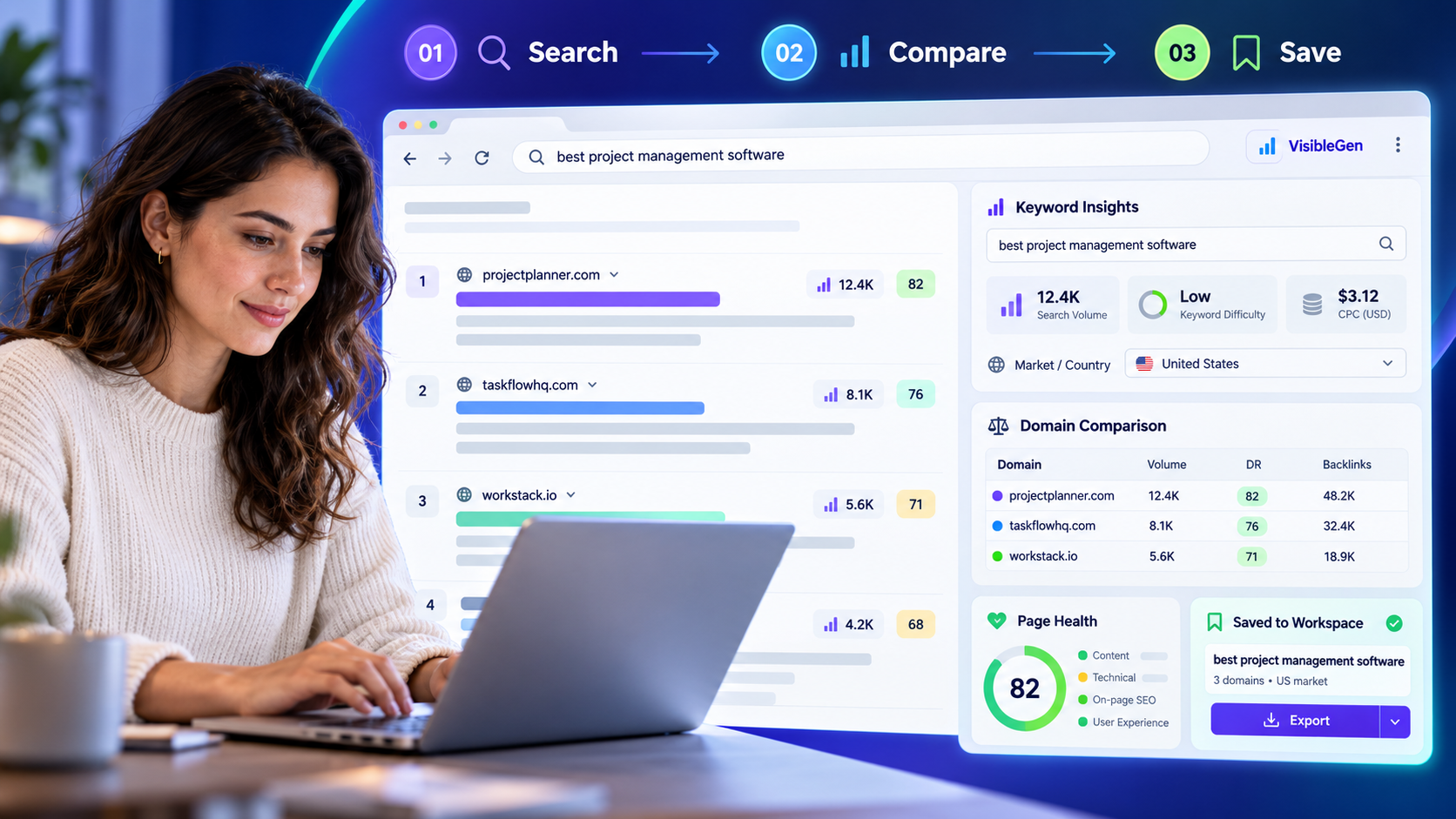 LIVE Chrome extensionYOU WILL FINISH WITHA reusable research collection
Have these four things ready.
You can follow the lesson in guest mode. Connect a free account only when you want connected metrics without the guest daily preview-count limit.
- 1Google Chrome on desktop
- 2A Google or Bing search you want to research
- 3VisibleGen installed from the official Chrome Web Store
- 4A free account only if you want connected metrics without the guest daily preview-count limit
One search page. One focused research workflow.
The extension places keyword, domain, page-health, and saved-research tools beside the page you are already using.
Install VisibleGen and pin it
Start from the official Chrome Web Store listing, then keep the extension within reach.
- Open the official VisibleGen listing in the Chrome Web Store.
- Choose “Add to Chrome” and review the permissions shown by Chrome.
- Open the Extensions menu and pin VisibleGen if you want its icon beside the address bar.
- Select the VisibleGen icon once to confirm the extension panel opens.
Search for a real buyer question
Use a phrase a customer might genuinely type, not a keyword invented only for a report.
- Open Google or Bing in a normal browser tab.
- Search for one clear phrase connected to a service, product, or customer problem.
- Wait for the results page to finish loading.
- If the VisibleGen toolbar does not appear, open extension Settings and check whether search panels are enabled.
Review demand and choose the right market
Read the available keyword indicators in the market that matches your audience.
- Open the keyword research view for the phrase already in the search box.
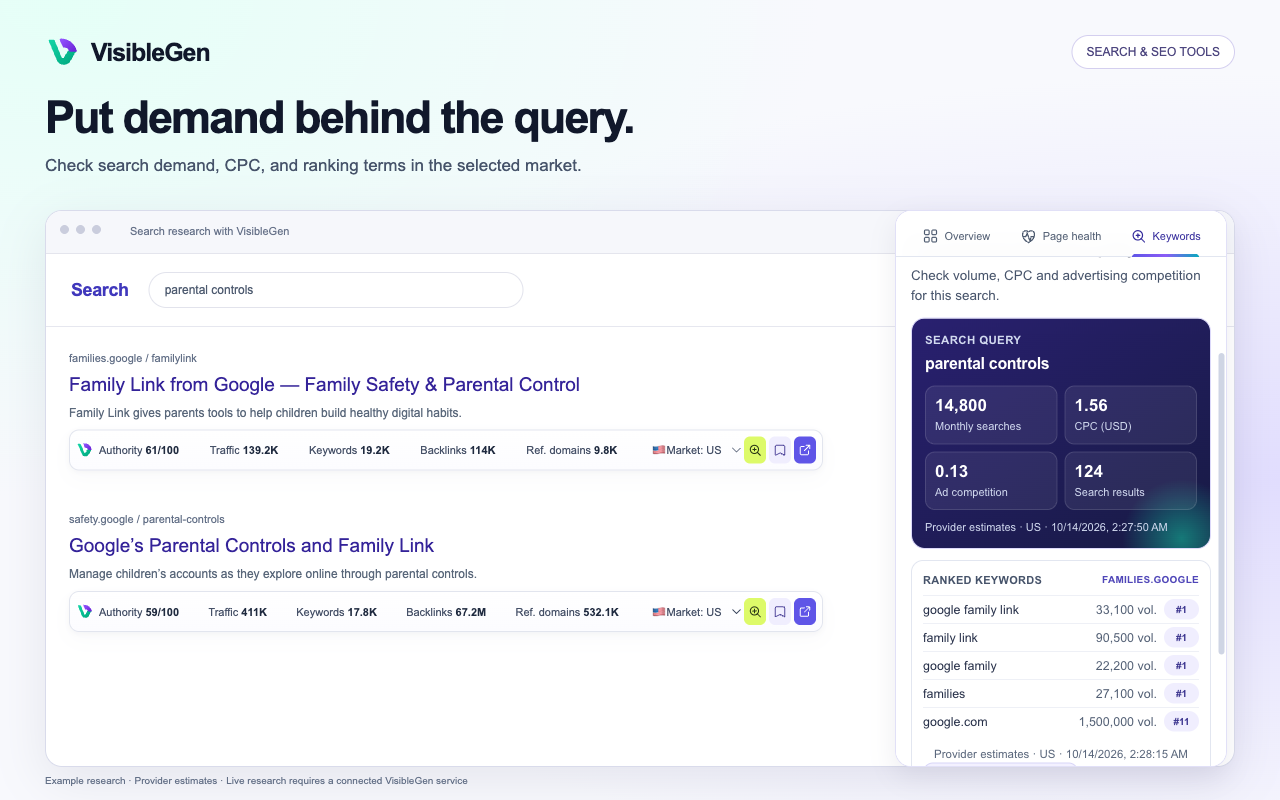
- Review monthly search demand, CPC, and advertising competition when coverage is available.
- Open the market selector and choose the country you want to study.
- Treat the numbers as research estimates, not a promise of traffic or sales.
Compare the domains already ranking
Use the result page as a shortlist, then inspect the signals that help explain the competitive field.
- Select a result or use the comparison control beside a domain.
- Review available authority, estimated traffic, ranking-keyword, backlink, and referring-domain indicators.
- Compare at least three relevant results instead of judging the market from one website.
- Write down what deserves a closer look. A metric is a clue, not the reason a page ranks.
Check the page, save the finding, and export
Turn the search session into a small research collection you can return to later.
- Open a relevant result and run the public-page check or the local active-page audit.
- Review the title, description, headings, canonical, robots rules, links, images, and structured data that are available.
- Save the useful domain or keyword to your local collection.
- Export the collection as CSV when you are ready to share or continue the work elsewhere.
When the screen does not match the lesson.
Start with the simplest check. Do not treat missing coverage as a zero.
The research panel does not appear
Open VisibleGen Settings and confirm that search panels are enabled. Reload the supported search page after changing the setting.
A metric says unavailable
Coverage can vary by domain, keyword, market, and service. Keep unavailable data separate from a measured zero.
Guest previews are finished for today
Guest mode includes 15 domain previews per browser each day. Connect a free account for connected metrics without that daily preview-count limit; other limits still apply.
The page check looks incomplete
Try the rendered active-page audit for the page currently open. Some public checks cannot see content that appears only after scripts run or after a login.
VisibleGen Chrome quick reference.
Review demand, CPC, and advertising competition where available.
Match the research to one of eight supported country markets.
Compare available public domain signals beside the result page.
Review essential on-page and technical elements.
Keep selected domains and keywords locally and export them as CSV.