A customer who searches for “same-day boiler repair in Leeds” has a job to get done. They want to know whether you cover their street, how quickly you can visit, and whether you work on their boiler. If your WordPress page opens with three paragraphs about your company values, they may leave before they find those answers. A better SEO checklist starts with that customer and works outward to the settings that help search engines find the page.
Use this guide on one page that matters to your business. That could be a service page, a product category, or a WooCommerce product. Working on one page first makes it much easier to see what changed, check the result, and repeat the process across the rest of the site.
Pick one page and one job
Open your recent Google Search Console performance report and look for a page that already earns impressions for searches related to something you sell. A page with a steady trickle of impressions and an unclear offer is a reasonable place to start. If you are launching a new site and have no data yet, choose a page your sales or support team already sends to customers. It has a real job even before it has search traffic.
Write down the question the visitor is trying to answer. For the boiler example, “Can someone fix my boiler today?” is clearer than a target such as “improve heating SEO.” Put your answer near the top, followed by the service area, the hours you actually offer, and the next step. If you provide same-day visits only when a technician is available, say so. The qualification helps a customer decide whether to call and keeps the page accurate when it is quoted elsewhere.
Check whether the right URL can be found
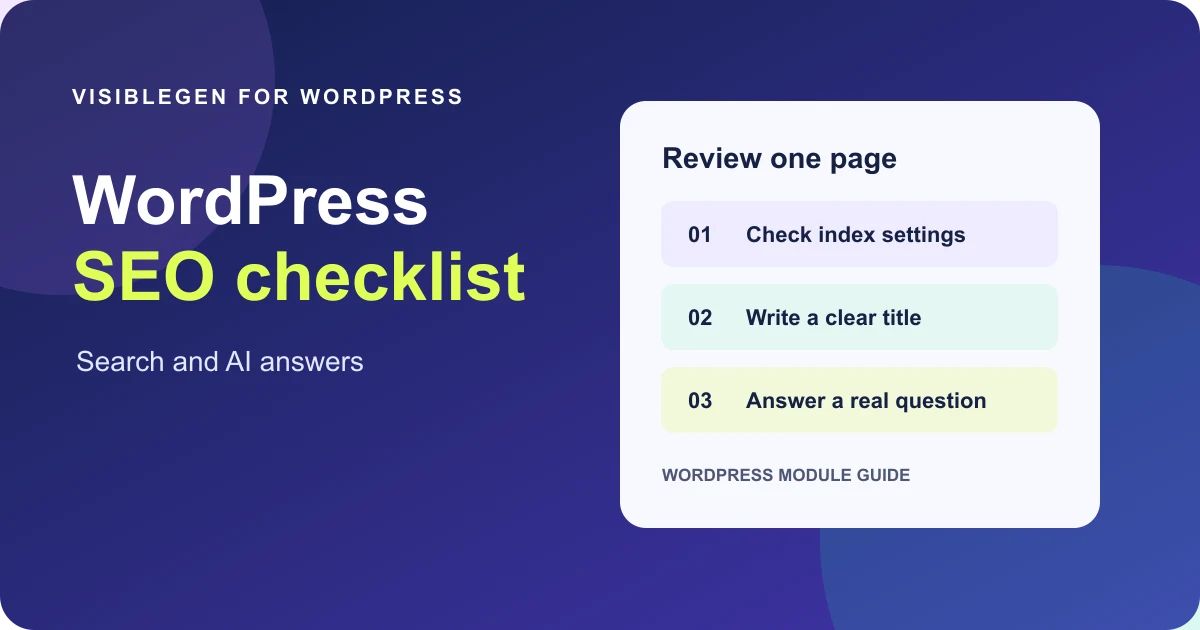
Open the public URL in a private browser window. It should show the page a customer expects without requiring a login. Next, inspect the URL in Search Console. Compare Google's reported canonical with the version you want people to find. On a store, the same product may be reachable through a category, a filtered list, and a product link. Use your preferred public URL in internal links and check that your canonical settings point where you intend.
Review the page's index setting and look for it in the sitemap if it should be discoverable. A sitemap helps discovery, while a canonical expresses which URL you prefer for equivalent content. Neither guarantees indexing. If the page used to live elsewhere, link directly to the new URL and confirm the old address redirects to the closest replacement. Sending every retired page to the homepage creates a dead end for people looking for a specific service or product.
Make the search listing worth opening
Give the page a title that names the service and adds the detail that helps someone choose. “Boiler Repair in Leeds | North Street Heating” says much more than “Services | Home.” Keep your page heading close in meaning and write a meta description that gives a specific reason to open the page. A real service area or an explanation of what happens after booking can help. Search engines can choose different title text and snippets, so make sure those details also appear in the visible copy.
Check the result on a phone. A page can have an accurate title and still bury the booking link below a huge image. Put the primary action where it makes sense after the answer, and use link text that explains what happens next. “Check repair availability” sets an expectation that “Learn more” leaves open. On product pages, let shoppers see availability and the delivery or collection details before they need to start checkout.
Answer the questions customers ask out loud
Pull three recurring questions from emails, calls, or the questions your staff hear in store. Answer each one in a sentence before adding exceptions. For a repair business, explain what to do if a fault returns, which brands you service, and what happens when a part needs ordering. Use a short list when readers need to scan several items, and use a table only when they genuinely need to compare options.
If you add structured data, match it to what people can see. For a product, check the price and stock shown on the page against the structured data. Test a representative page after a change and recheck a product that has gone out of stock. When two plugins output conflicting information, decide which tool owns each setting before editing a whole catalogue. Google explains how normal search fundamentals apply to its AI search experiences in its guide to AI features and your website.
Measure the page before editing again
Save the date, the URL, and a short note explaining what you changed. Keep the previous title and opening paragraph so you can compare them later. Watch clicks and impressions for the page and relevant queries over a useful period, and compare similar date ranges. Holidays, promotions, and service availability can change demand, so a single day of better traffic tells you very little.
Give the page a business measure as well. A shop could watch add-to-cart activity on that product. A service business might track completed booking enquiries. If visits rise but relevant enquiries fall, read the page as a customer who landed from the new search queries. You may be answering a broader question than the service can fulfil. If the traffic is a better fit but the form still goes unused, test whether it is easy to find and complete before rewriting the entire page.
Leave a short note for the next editor
Write down which plugin owns the title, canonical, sitemap, and product data for the page. Then tell the next editor which details need a fresh check whenever the offer changes. For a service page, that might be hours and coverage. For a store, it might be stock, delivery, or whether an old product link still takes customers somewhere useful. If your team uses a title template, open the final title on the published page so you can see what happens when the site name and separator are added.
Save the note with the page's owner and the date of the review. Put questions you could not answer into a separate list. For example, if nobody knows whether Sunday calls are accepted, ask whoever schedules jobs and check the answer against the booking system. Return to the page once that detail is settled. The customer should get the same answer from the website and from the person who picks up the phone.
Start with the settings you will use
The VisibleGen SEO, GEO & AEO plugin page shows the WordPress tools for titles, descriptions, canonicals, indexing, redirects, and editor checks. The core SEO tools run on your site. If you are switching from another plugin, start on a copy of the site, review what imports, and compare the public output on a post, a page, and a product before changing the live setup.
Try the checklist on the page that gets the most useful enquiries. Check that it is reachable, give it a clear search title, answer one real customer question, and test the next click. Save that example as a standard your team can reuse. One well-checked page gives you a better template than a sitewide rewrite whose effects you cannot separate.