“Update the website before the new offer goes out” sounds like one task. It rarely is. A new offer can change a price on the homepage, a description on a product page, a button in the menu, and the wording in a confirmation email. If a colleague changes the price while someone else updates the old landing page, customers may see both versions on the same morning. A short WordPress website update plan makes those moving parts visible before anyone edits the site.
You can build the plan in a document or spreadsheet. What matters is that the team agrees on the goal, the pages and systems involved, the checks required to publish, and what happens if something goes wrong. Here is how that looks when a small business is preparing a real kind of change.
Start with what the customer should be able to do
Write the goal in one sentence. Imagine a bakery introducing Saturday collection for online orders. “Customers can order a cake by Thursday and choose a Saturday pickup slot” makes the job much clearer than “update the bakery website.” It also exposes decisions the website cannot make for you. Who sets the cutoff? How many orders can staff handle? What should the shop say when Saturday is full?
Ask the person who owns the offer to settle those questions before the team starts. Put the agreed rules in the brief, with any exceptions that matter. Give the project a measure you can check after launch. The bakery could look at completed Saturday pickups and enquiries asking how collection works. Those measures tell you more about whether the change helped customers than the number of pages the team edited.
List the places that will change
Walk through the site as a customer. Start at an entry page, choose an item, place a test order, and read the confirmation. Write down the address or system at each step. Include shared menus, templates, saved blocks, emails, and integrations if they show the offer. Changing a banner inside a shared block may change many more pages than the editor has open. If you use a block theme, the WordPress Site Editor guide explains where templates and template parts are managed.
Split the list into changes and checks. The bakery might update the collection page and configure a pickup option. It should also check that delivery still works normally and the returns page still makes sense, even if neither needs editing. Mark any paid plugin, translation work, or staff time you have to arrange. Flag decisions that could alter the schedule. If pickup slots depend on a new checkout setting, confirm the setting works before asking someone to write copy about it.
Put a name next to each decision
Separate the person doing the work from the person approving it. The bakery's store manager might approve the cutoff and capacity, the website manager might change WooCommerce, and a colleague might place test orders. On a small team one person can cover multiple roles. Write their name beside each decision anyway so a loose question does not stall publication.
Agree on an order. Test the checkout change before promoting the offer. Check the approved rules before translating the collection page or preparing campaign emails. Choose a launch time when someone can watch the first orders and fix any issue. If the only person who can change checkout is away on Saturday, a Friday evening rollout may be a poor choice. The schedule should reflect who is available, as well as when the marketing campaign is due.
Decide what counts as ready
Write tests a colleague can run without a briefing. For the bakery, an eligible product should show Saturday pickup before the cutoff. A product that cannot be collected should show the normal options. A full slot should stop taking new orders, and the confirmation should show the chosen slot and address. Run those checks in staging with a test payment method when possible. Check phone layouts and make sure a customer can recover from an invalid selection.
Before the live change, make sure the team knows how to undo it. A WordPress revision may restore a page's text, while a checkout setting could need a separate reset. Keep a record of the original values and decide who can turn off the offer if necessary. Think about orders placed while the option was live. Those customers may still need a call or a new time even after the website has been restored.
Watch the first hours after release
Publish the offer when the team can verify it. Visit the live pages in a private window and follow the main route to checkout. Look at the first eligible orders with whoever handles collection. Confirm that the team sees the pickup details where they need them. If there is an error, use the decision agreed in advance. You may need to pause promotion, disable the option, or contact an affected customer.
Keep a brief record after launch. Note which pages changed, where the settings live, who approved them, and anything still open. Revisit the measures you chose once you have enough orders or enquiries to judge them. If customers still call to ask when to arrive, check the booking page and confirmation email before assuming the offer needs to change. Update the plan with what you learned so your next launch starts with better information.
Leave room for decisions you cannot make yet
Add a short list of open questions next to the proposed work. Each question should say who can answer it and when the answer is needed. For the bakery, a shipping extension might treat pickup orders differently from delivery orders. The website manager can test that before the team promises a collection option for every product. If the test fails, the store manager can decide whether to launch with a smaller collection.
Write down what the first release leaves for later. You may want to add extra collection points next month, but the Saturday launch can still have a clear scope. Keep a separate note for requests that arrive after approval. That way the team can tell which new ideas are worth stopping for and which can wait for the next change. A list of decisions and exclusions also gives a client something concrete to approve. They can see what they are getting, what their team needs to provide, and which assumptions still need checking.
See the plan before approving the work
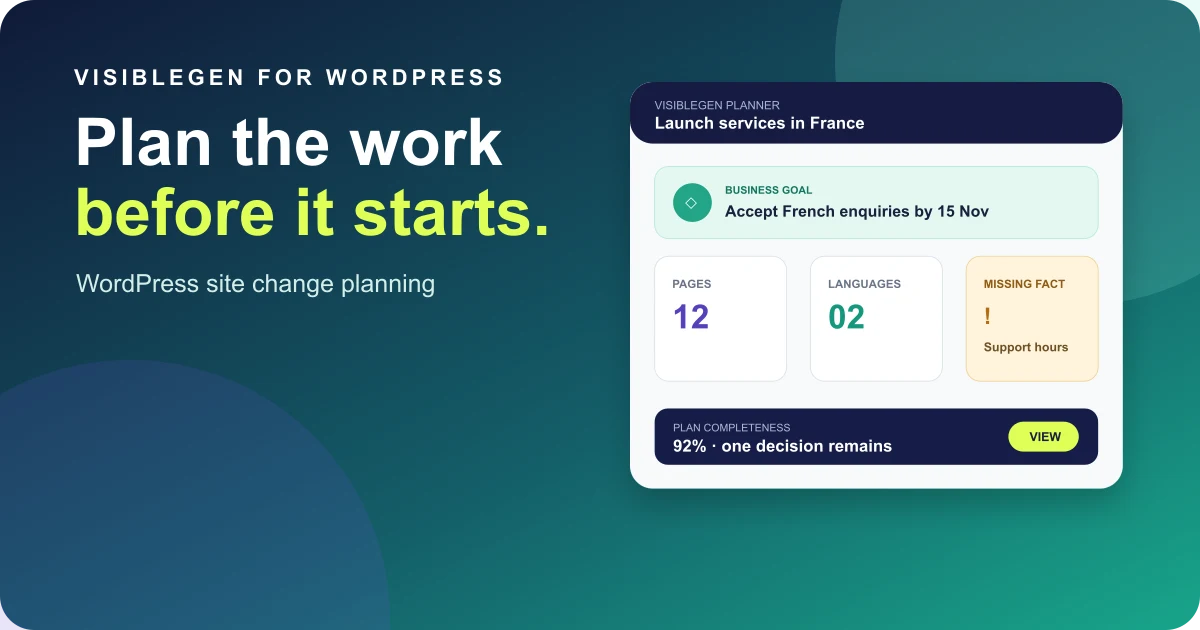
VisibleGen Planner is an early-access preview for turning a WordPress or WooCommerce goal into a proposal with pages, tasks, checks, and costs visible before approval. Visit the preview and join the waitlist if your team spends too much time chasing approvals across messages and documents.
Meanwhile, choose an update already on your calendar and write the outcome in one sentence. Ask the people who will do the work to list what else might change. Then agree on one test that would stop you from publishing if it failed. That short conversation can prevent a team from doing the same job twice, and it gives everyone a clear answer when a colleague asks whether the new offer is ready to go live.